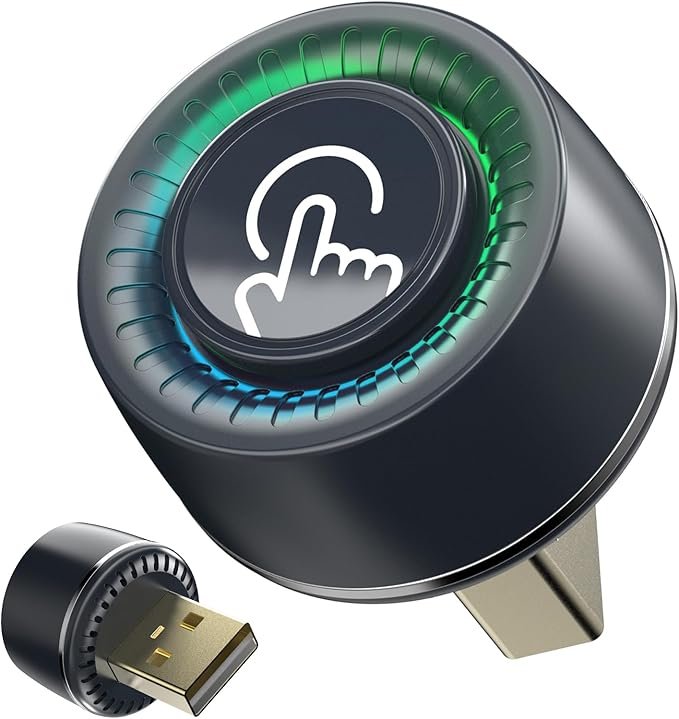
Wireless CarPlay Adapter – Upgrade Your Driving Experience
In today’s connected world, staying linked with your smartphone while driving is more than a convenience—it’s a safety and efficiency boost. A Wireless CarPlay Adapter transforms your vehicle’s wired Apple CarPlay into a wireless experience, eliminating the need for constant plugging and unplugging. This upgrade is ideal for drivers who want seamless connectivity, easier access to navigation, music, calls, and messages without distraction.
This comprehensive guide will walk you through what a wireless CarPlay adapter is, how it works, key features to consider, comparison tables, and tips to choose the best one.
What Is a Wireless CarPlay Adapter?
A wireless CarPlay adapter is a compact device that plugs into your vehicle’s USB port (where you normally connect your iPhone for CarPlay). Once connected, it creates a wireless link between your iPhone and the car’s infotainment system. After initial pairing, your iPhone will automatically connect to CarPlay every time you enter the vehicle without plugging in a cable.
Wireless adapters are compatible with most CarPlay‑enabled systems and support the full CarPlay feature set, including Maps, Messages, Phone, Music, Podcasts, and third‑party apps like Spotify and Audible.
How Does a Wireless CarPlay Adapter Work?
- Plug In the Adapter: Connect the adapter to your vehicle’s USB port designated for Apple CarPlay.
- Pair with Your iPhone: Pair your iPhone via Bluetooth and Wi‑Fi. The adapter creates a wireless CarPlay session.
- Automatic Connectivity: After the initial setup, your phone connects automatically when you are in the car.
- Use CarPlay Wirelessly: Control apps, navigation, messages, and music without the cable.
Key Features to Look For
1. Compatibility
Ensure the adapter is compatible with your car’s CarPlay system, iPhone models, and iOS versions.
2. Easy Setup
Good adapters offer simple plug‑and‑play installation without additional apps or complex pairing steps.
3. Stable Connection
Wireless CarPlay requires smooth Bluetooth and Wi‑Fi communication. Quality adapters minimize connection drops.
4. Fast Connection
The best adapters connect quickly after starting your vehicle, reducing waiting time.
5. Compact Design
A small form factor avoids clutter and keeps the USB port accessible.
Benefits of Using a Wireless CarPlay Adapter
- No need for a USB cable every time you get into your car
- Cleaner dashboard and less cable clutter
- Automatic connection and instant access
- Safer driving with hands‑free control
- Supports all CarPlay apps including navigation, music, and messaging
Wireless CarPlay Adapter vs Traditional Wired CarPlay
| Feature | Wireless CarPlay Adapter | Wired CarPlay |
|---|---|---|
| Cable Requirement | No | Yes |
| Automatic Connection | Yes | Only when plugged in |
| Dashboard Clutter | Minimal | Higher due to cable |
| Setup | Plug and play | Plug every time |
| Convenience | High | Moderate |
| Stability | Good (depends on model) | Very High |
Typical Use Cases
| Scenario | Why Wireless CarPlay Is Useful |
|---|---|
| Daily Commute | Saves time and avoids plugging in every trip |
| Ride‑Sharing Drivers | Quick connectivity between trips |
| Families with Multiple Drivers | Automatic pairing for different phones |
| Business Drivers | Easy access to navigation and calls |
| Vacation Road Trips | Wireless media and navigation for passengers |
Comparison Table – Common Features by Adapter Type
| Feature | Basic Adapters | Premium Adapters |
|---|---|---|
| Wireless Connectivity | Yes | Yes |
| Quick Start | Moderate | Fast |
| Compatibility | Standard | Extensive (multiple cars, updates) |
| Firmware Updates | Limited | Regular via app |
| Connection Stability | Good | Excellent |
| Price | Lower | Higher |
How to Install a Wireless CarPlay Adapter
- Locate CarPlay USB Port: Use the port normally intended for your iPhone.
- Plug the Adapter In: Connect the wireless adapter.
- Pair Your iPhone: Use Bluetooth settings and Wi‑Fi for initial pairing.
- Grant Permissions: Allow CarPlay access on your iPhone.
- Automatic Setup Next Time: Once paired, future connections are automatic.
Troubleshooting Common Issues
| Issue | Possible Solution |
|---|---|
| Adapter not connecting | Restart your iPhone and vehicle, re‑pair Bluetooth |
| Slow connection | Check for firmware updates on the adapter |
| Intermittent drop | Ensure clear line of sight between phone and adapter |
| Audio issues | Reset CarPlay settings on your iPhone |
Tips for Choosing the Right Wireless CarPlay Adapter
- Check Compatibility: Verify support for your car model and iPhone version.
- Read Reviews: User feedback often reveals real‑world performance and stability.
- Firmware Updates: Choose adapters from brands that provide ongoing updates.
- Connection Speed: Faster connection improves user experience.
- Return Policy: A good return policy helps if the adapter isn’t ideal for your system.
Frequently Asked Questions
Can any car with CarPlay use a wireless adapter?
Most cars with wired Apple CarPlay support wireless adapters. However, check compatibility details before purchasing.
Will wireless CarPlay reduce battery life?
Wireless CarPlay uses Bluetooth and Wi‑Fi, which may use slightly more battery than a wired connection, but the impact is minimal when driving.
Is setup difficult?
Most wireless adapters offer plug‑and‑play installation. Initial pairing takes a few minutes.
Does this work with Android phones?
Wireless CarPlay adapters are designed for Apple devices only. Android phones may use wireless Android Auto if supported.
Disclaimer
This article contains affiliate links. As an Amazon Associate, I may earn a commission from qualifying purchases at no additional cost to you. Product prices, availability, and features may change over time. All brand names, trademarks, and product names are the property of their respective owners.